


The email arrives at 8:42 on a Tuesday, while you are still deciding whether the day has properly started. It is from your bank, or your boss, or a courier holding a parcel you do not remember ordering. The logo looks right. The layout looks right. Something feels slightly off, and you cannot say what.
That feeling is worth trusting. Most phishing emails give themselves away within the first minute, but only if you know which four or five details to check. You do not need expensive security software to catch the majority of them. You need a short routine, and the discipline to run it before you click anything.
Read the Sender Address, Not the Display Name
Display names are free text. Anyone can type "PayPal Service" or "IT Helpdesk" into their mail client, and the message will arrive wearing that name like a borrowed coat. The real information sits in the address after the @ symbol.
Look at these three:
- billing@paypal-secure-invoices.com — extra words glued onto the brand. PayPal writes from paypal.com.
- support@paypa1.com — a numeral one where the letter L should be. Easy to miss at a glance, obvious once you look.
- hr@yourcompany-hr.net — close to your employer's name, but on a domain your employer does not own.
Two further tricks are worth knowing. A genuine-looking address can be buried inside a longer one: paypal.com.account-verify.io shows the trusted brand first, but the domain that actually receives your click is account-verify.io. Read domains from the right, not the left. And if the "from" line looks like your own address with a small variation, treat it as hostile until you have proved otherwise — that pattern usually means someone is impersonating you to your own colleagues.
Hover Before You Click
On a computer, rest your cursor over the link without pressing it. On a phone, press and hold to preview the destination. What you want is the real domain, which is the part immediately to the left of the first single slash after "https://". Everything after that first slash is just a page path and can say anything.
Common mismatches to watch for:
- The button says "View invoice" but the address points to a random string of characters or a number.
- The link uses a shortener such as bit.ly, which hides the destination entirely.
- The domain is a near-miss: arnazon.com, rnicrosoft.com, or a legitimate name with a hyphen stuck on the end.
One myth to drop: the padlock icon does not mean a site is honest. Certificates are cheap and widely automated, and plenty of phishing pages have them. The padlock tells you the connection is encrypted, not that the people on the other end deserve your password.
A stronger habit than link-checking is simply refusing to log in through links. If a message claims your account needs attention, close it and open the app or type the address yourself. The real site will show you the same warning if it is genuine.
Attachments That Ask Too Much
An unexpected attachment deserves more suspicion than an unexpected link, because files can run code the moment you open them. A few formats should make you pause immediately:
- HTML or HTM files posing as invoices or scanned documents. Open one and you get a fake login page rendered in your browser.
- Password-protected archives, where the password is supplied in the email body. That trick exists to slip past security scanners.
- Macro-enabled Office files — .docm and .xlsm — that greet you with a yellow bar asking you to "Enable content".
- Disk images and scripts such as .iso or .js, which have no business arriving from a stranger.
Familiarity is not proof. A compromised colleague's account will happily send you a file they never wrote. If an attachment you were not expecting comes from someone you know, confirm it over a channel you chose — a quick message, a call — rather than replying to the email.
Urgency Is the Payload
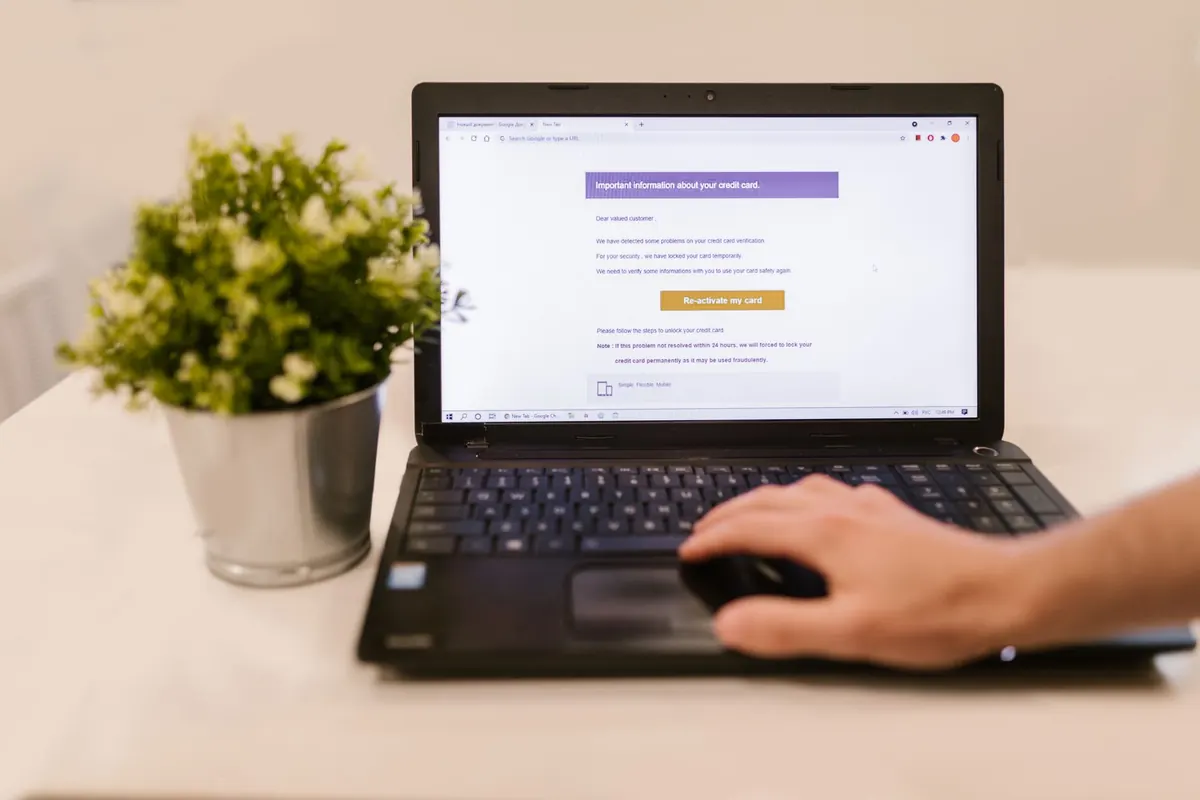
Phishing needs you to act before you think, so the writing is engineered to compress time. Deadlines, threats of suspension, and warnings about unusual activity all push in the same direction: click now, ask later.
Watch for phrasing like "within 24 hours", "your account will be closed", "final notice", "payment failed", "a parcel could not be delivered". Watch too for the softer version — a vague note from an executive asking you to review something confidential, with a request for secrecy attached. Requests for gift cards, wire transfers, or a change to payroll bank details are a well-worn pattern and should always be verified by phone.
Here is the rule that catches most of them: urgency plus a link or attachment plus a request for credentials, money, or a file download means stop. Legitimate organisations rarely impose a countdown on you in an email.
The 60-Second Checklist
Run these in order. With practice the whole sequence takes under a minute.
- Sender address. Read past the display name and check the domain character by character.
- Greeting. "Dear Valued Customer" is a warning sign, though a message that uses your real name is not automatically safe — breaches leak names too.
- Links. Hover or press and hold. Identify the true domain and ignore the page path.
- Attachments. Unexpected file, unexpected format, or a password supplied in the email: leave it closed.
- Tone. A deadline, a threat, or a plea for secrecy is pressure, not information.
- Context. Did you expect this? Did you request it? If not, verify through the app, a saved bookmark, or the phone number on the back of your card — never a number printed in the email.
- When in doubt, don't. Delete it and report it. Nothing bad happens if a real message goes unanswered for an hour.
If You Already Clicked
Do not panic, and do not stay quiet. If you only opened the message and clicked a link without entering anything, close the tab and delete the email. If you did type your password, change it immediately from a different device, turn on two-factor authentication if it is not already active, and sign out of all other sessions. Check the account's recovery email and phone settings — attackers often change those first.
If it is a work account, tell your IT or security team straight away. Early reports are cheap; late discoveries are not. If you opened an attachment, disconnect the device from the network and run a full scan before reconnecting. If money moved, call your bank's fraud line directly and ask them to help — that team handles these situations constantly and will tell you what to do next.
Build the Habit
Speed here comes from repetition, not talent. Run the checklist on your normal mail for two weeks and it becomes automatic; the odd ones will stand out before you have finished reading the second line.
While you are at it, make your accounts harder to abuse. Turn on two-factor authentication wherever it is offered, keep your browser and operating system updated, and use a password manager. Password managers will not autofill your credentials on a domain you have never saved, which quietly turns a fake login page into an obvious dead end.
Finally, report suspicious mail rather than just deleting it. Filters learn from reports, and one message you flag today may protect everyone else on the same list tomorrow.
Photo: RDNE Stock project / Pexels
Related posts
More stories you’ll love reading