




Cybersecurity
Remote Work Cybersecurity Checklist: 12 Settings to Lock Down This Week
September 20, 2026
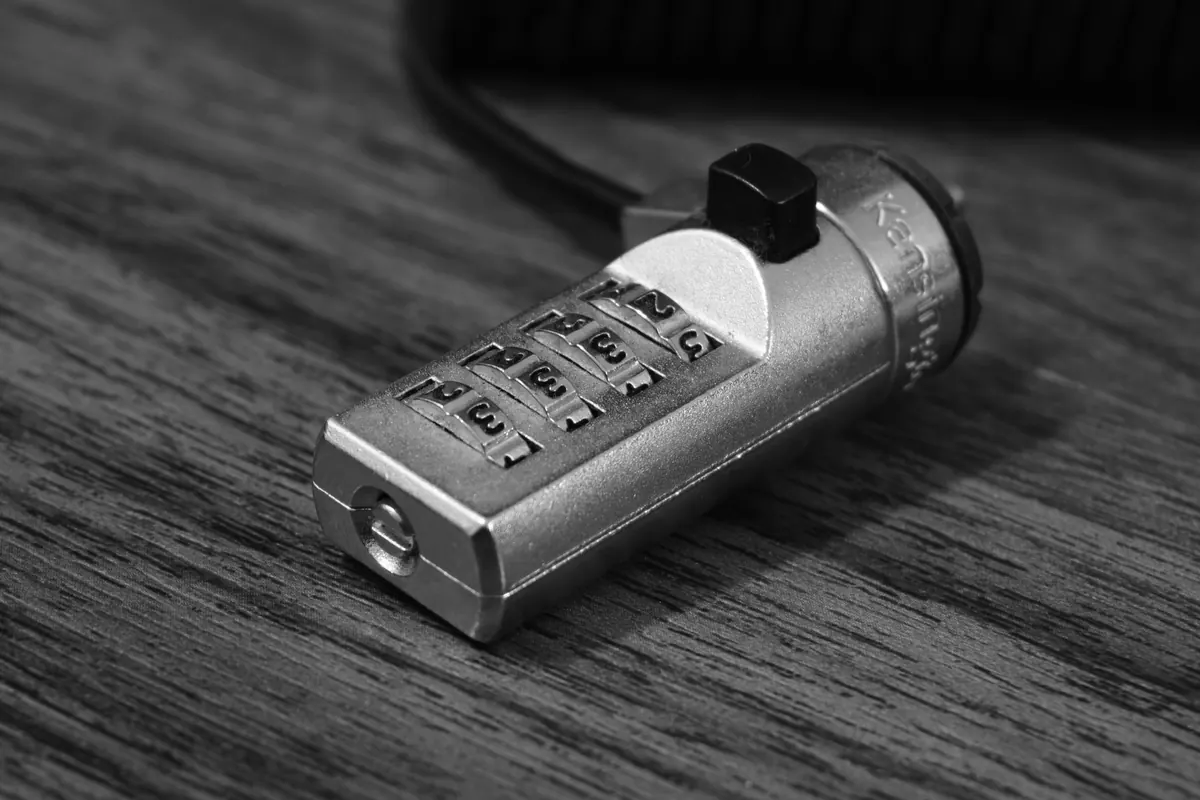
Remote work moved from occasional perk to daily routine for many people, and home networks now carry the same sensitive email, contracts, and customer data that once stayed behind an office firewall. The difference is that nobody from IT will notice a strange router setting or an unpatched laptop in your spare room. A short, focused security pass fixes that. You do not need a corporate budget or a degree in network engineering. You need an hour, a checklist, and the willingness to change a few defaults you probably have not touched since setup.
Below are 12 settings and habits to review this week. Work through them in order, or jump to the ones that apply to your setup.
Wi-Fi and Network Basics
1. Change the router admin password
Your router is the front door to every work file, call, and password you type at home. Log in to its admin panel and look for the administrator password. If it is still something like admin or printed on the sticker, change it now. Use a long, unique passphrase that is different from your Wi-Fi password. Store it in your password manager so you are not tempted to reuse it.
2. Use WPA3 or WPA2-AES and disable WPS
In the wireless settings, check the security mode. Choose WPA3 if your devices support it. If not, WPA2-AES is the next best option. Avoid WEP and open networks entirely. While you are there, turn off WPS push-button pairing. It is convenient, but it can be weaker than a strong passphrase. Also rename the network so it does not include your address, apartment number, or family name.
3. Create a guest network and update router firmware
Put smart TVs, thermostats, printers, and visitor devices on a guest network. Keep your work laptop and phone on the main network. That way, if a cheap smart plug has a bad security flaw, it is not sitting next to your client files. Then check for router firmware updates. Many routers update automatically, but plenty do not. Set a calendar reminder to check every few months.
Passwords and Authentication
4. Use a password manager
Reusing passwords is the quiet risk that turns one breached shopping site into a compromised work account. A password manager solves the memory problem: you create one strong master passphrase, then let it generate and store unique passwords for every service. If your employer provides a manager, use it. If not, a reputable consumer manager is fine. The important part is consistency, not brand loyalty.
5. Turn on MFA everywhere
Enable multi-factor authentication wherever it is offered. Start with your email, cloud storage, banking, and any admin panel. Prefer an authenticator app or a hardware security key over SMS codes when you can, because phone numbers can be moved or intercepted. If SMS is the only option, use it rather than nothing. A six-digit text code is still better than a password alone.
Updates and Patch Hygiene
6. Turn on automatic updates and restart
Updates are the least glamorous security control and one of the most effective. Turn on automatic updates for your operating system, browser, and work applications. That includes the tools you forget: PDF readers, video call clients, note-taking apps, and browser plugins. Restart when prompted instead of postponing for weeks. A pending restart is often an unfinished patch.
7. Patch the devices you forget
Check your phone and tablet too, especially if you read work email on them. Install updates for your router, printer, and any smart home gear connected to your network. If a device no longer receives security updates, move it to the guest network or replace it. An old device is not just slow; it can be an open door that nobody is watching.
Device Sharing and Physical Security
8. Separate accounts, lock screens
Home offices are shared spaces. A partner, child, or roommate may use your laptop for a quick search, or you may lend a tablet during a call. Set boundaries that protect work data without turning your home into a fortress.
- Create separate user accounts for family members on shared computers. Do not let them use your admin account.
- Turn off automatic login and require a password or biometric check after sleep.
- Lock your screen every time you stand up, and set it to lock automatically after five minutes or less.
- Keep work devices out of common areas when you are not using them, especially if guests are around.
9. Encrypt drives and protect your screen
Enable full-disk encryption so a lost or stolen laptop is not an open book. BitLocker, FileVault, and similar built-in tools are usually enough for a home office. Use a privacy screen or position your monitor away from windows if you handle confidential information. When you travel, keep the device with you rather than checking it in a bag.
Work Tools and Data
10. Review cloud sharing and meeting links
In cloud storage, review sharing permissions on your work folders. A link that anyone with the URL can edit should be rare. Set expiration dates on shared links when possible. For video calls, use waiting rooms, require passwords, and avoid posting meeting links publicly. Keep work files in work accounts rather than personal drives, and avoid mixing personal and business logins in the same browser profile.
11. Slow down on phishing
Phishing remains a common way attackers get in, and remote workers are prime targets because they cannot walk down the hall to verify a suspicious request. Check the sender address, not just the display name. Hover over links to see the real destination. If an email creates urgency around a payment, password, or gift card, verify it through a separate channel before you click or reply.
Backups and Incident Response
12. Back up and write a short incident plan
Backups protect you from ransomware, accidental deletion, and hardware failure. Keep at least three copies of important data, on two different types of media, with one copy off-site or in the cloud. Test a restore occasionally, because a backup you cannot recover is not a backup. Encrypt external drives and store them somewhere not obvious if they contain sensitive data.
Write a short incident plan. Know who to contact at work if your laptop is lost or you suspect a breach. Save that contact somewhere other than the laptop itself. If a device goes missing, report it quickly, change passwords from a different device, and revoke
Photo: Nikhiel CS / Pexels
Related posts
More stories you’ll love reading